
The core conclusion first: Cursor's built-in Browser is the right tool for previewing and verifying what you're building, and it stops, by design, at logins, long-running tasks, and independent windows. Past that boundary you add one of three routes: Browser MCP to take over your real browser, Playwright MCP for a full automation browser, or ego (lite) for an external real browser that carries your sessions.
ego (lite) is Route A and Route B combined: an agent browser for browser automation with Browser MCP's logged-in access and Playwright MCP's separate browser, without either one's structural cost. Cursor drives it through the ego-browser skill, every site you've signed into stays signed in, and the task runs in its own Space while your editor and your Chrome stay yours.
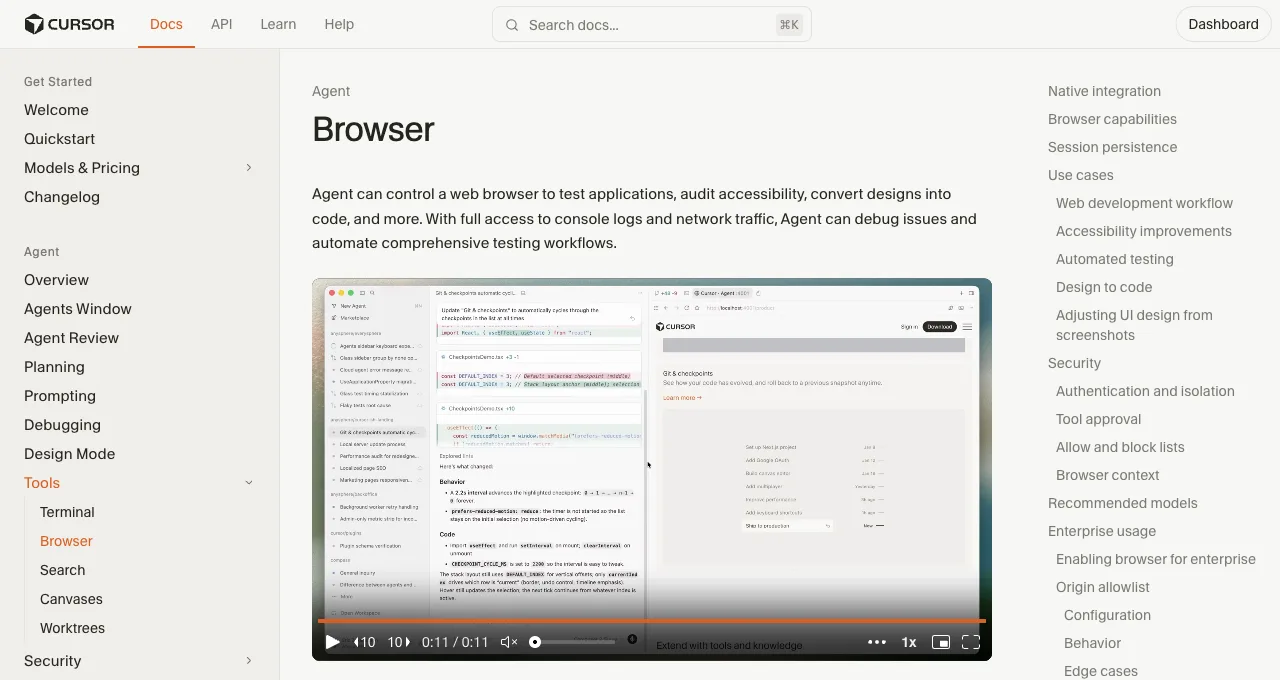
Cursor ships a real browser now: an in-editor pane the agent controls through MCP tools, no setup, screenshots the model actually sees as images. For "open my dev server and check the layout," it's genuinely good, and it made half of last year's Cursor browser workarounds obsolete overnight.
What can Cursor's built-in Browser actually do?
Per Cursor's docs, the agent gets full control of an in-editor web view through MCP tools: Navigate, Click, Type, Scroll, Screenshot, Console Output, and Network Traffic, with no external tools to install. Two design choices make it better than a toy: the agent sees screenshots as images rather than text descriptions, and browser logs go to files the agent can grep instead of flooding context.
The boundary is equally explicit. State is scoped: cookies and storage persist per workspace, in an isolated context, which means your personal Chrome sessions are not and never will be in it.
Control is gated: browser tools require approval by default, with allow-listed and auto-run modes behind settings (and Cursor's own warning to never auto-run on untrusted sites). And it's a pane in your editor: while the agent browses, that surface is spoken for.
So the built-in Browser's honest job description is: preview and verify what you're building, in the workspace, under supervision. Everything else is the next section.
What are the three routes beyond it?
Two extension routes with opposite trades, and a third that combines what they each get right.
Route A: Browser MCP (your browser, taken over).
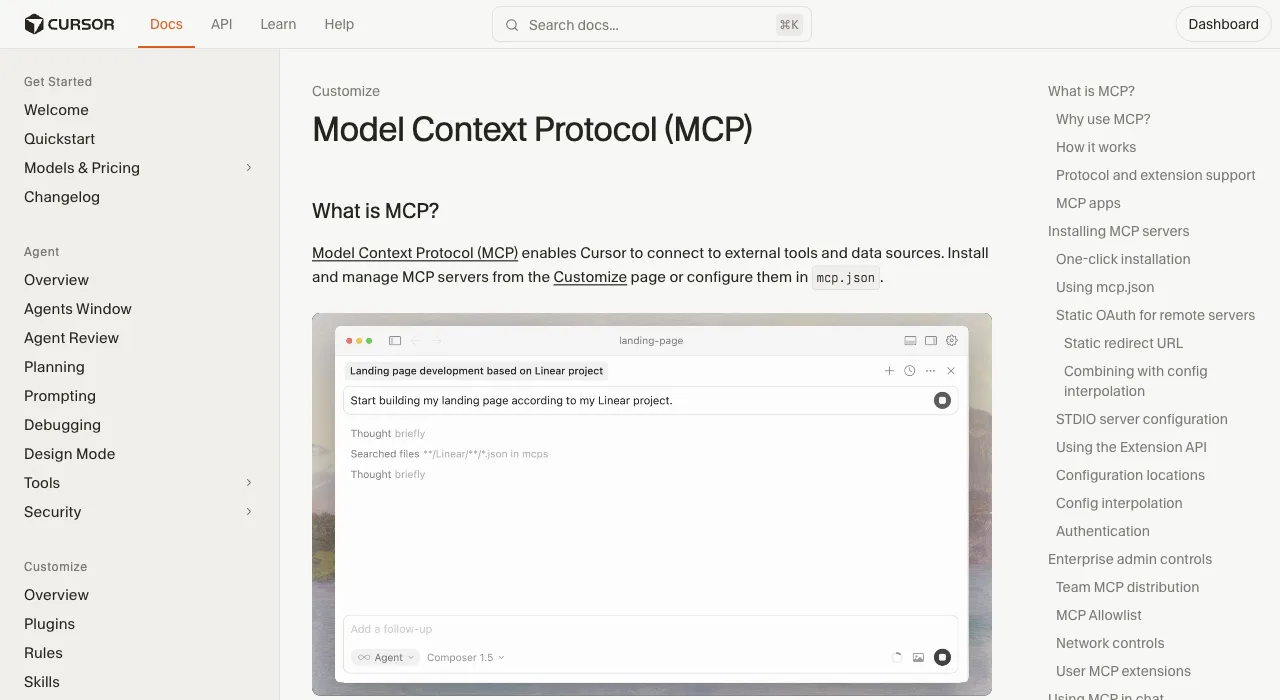
An extension-plus-server pair connecting Cursor to the browser you're using: automation runs locally and "uses your existing browser profile, keeping you logged into all your services." Fastest path to logged-in tasks; the trade is that it drives your actual window, one task at a time, while you wait.
Route B: Playwright MCP (a full automation browser).
Add the standard block to Cursor's MCP settings ({"mcpServers": {"playwright": {"command": "npx", "args": ["@playwright/mcp@latest"]}}}) and the agent gets cross-browser, headless-capable automation with deterministic element refs. The trades: a fresh profile with no logins, and the measured token bill on long sessions (89K-114K per test run in published measurements).
Route C: ego (lite) (an external real browser with your sessions).
ego (lite) is an agent browser for browser automation: a free browser built for sharing your logged-in browser state with AI agents. Cursor drives it through the ego-browser skill (the /ego-browser skill installs during onboarding).
Every site you've signed into stays signed in, the agent works in its own Space without touching your editor or your Chrome, and whole workflows execute outside the model's context. What it doesn't do: live inside Cursor's pane, or debug panels.
Here's what that skill call looks like on a live page today: a task space opens, navigates, and returns only the fields asked for.
ego-browser nodejs <<'EOF'
const task = await egoBrowser.newTaskSpace('evidence-egobrowser-hn')
console.log({ taskSpaceId: task.id })

await task.page.goto('https://news.ycombinator.com/', { waitUntil: 'load', timeout: 20000 })
const title = await task.page.title()
const topStory = await task.page.locator('.athing .titleline > a').first().innerText()
const points = await task.page.locator('.subtext .score').first().innerText().catch(() => null)
console.log({ title, url: task.page.url(), topStory, points })
EOF

# real output
{
  "taskSpaceId": 13
}
{
  "title": "Hacker News",
  "url": "https://news.ycombinator.com/",
  "topStory": "Qwen 3.8 27B",
  "points": "412 points"
}
About 90 characters back to the agent. Route B's published Playwright MCP runs land at 89K-114K tokens for a full test because each step ships an accessibility snapshot; this route never puts that tree in context.
The four surfaces, compared where they differ:
| Surface | Your logins | Runs while you work | Setup |
|---|---|---|---|
| Built-in Browser | No; isolated per-workspace state | It occupies an editor pane | None |
| Browser MCP | Yes; your real profile | No; it drives your browser | Extension + server config |
| Playwright MCP | No; fresh profile | Yes; separate browser | One config block |
| ego (lite) | Yes; inherited | Yes; its own Space | Download + onboarding |
How do you fix the three common failures?
Three symptoms cover most Cursor browser threads; check them in order, because the first two are settings behaving as designed rather than anything broken.
| Symptom | Likely cause | Fix |
|---|---|---|
| Built-in Browser can't reach the dev server | Wrong port or the server isn't detected | Start the dev server first, then tell the agent the exact URL and port; it's prompted to detect running servers but explicit beats implicit |
| Browser tool calls get blocked or stall | Approval mode or origin allowlist doing its job | Approve the pending call, or review the approval mode and (on enterprise) the Browser Origin Allowlist; navigation to non-allowed origins blocks click/type/navigate afterward by design |
| An external MCP server shows red / never connects | Node missing in Cursor's shell, or config in the wrong file | Check node --version is 18+ in a Cursor terminal, and remember project .cursor/mcp.json overrides the global ~/.cursor/mcp.json for that workspace |
Which setup for which work?
Keep the built-in Browser for what it's best at: previewing the app you're building, screenshot-verifying UI changes, and reading console errors, all without installing anything. Add Playwright MCP when the work becomes testing (cross-browser, headless, CI-adjacent).
Add Browser MCP or ego (lite) when the work needs your logins, and choose between them on window ownership: Browser MCP borrows the browser you're using; ego (lite) runs the task in its own Space while your editor and your Chrome stay yours, which is the difference you feel the third time a task runs twenty minutes.
A realistic full setup for a Cursor developer: built-in Browser for the dev loop, ego (lite) for logged-in daily tasks running in parallel, and that's it until a specific need (CI tests, performance traces) names its own tool.
Two worked examples to make the division concrete. Dev-loop task, built-in Browser: "open localhost:3000, screenshot the pricing section, and fix the overflow on mobile width"; the agent sees the screenshot as an image, edits the CSS, re-screenshots, done, all inside the editor.
Logged-in task, ego (lite): "pull this week's numbers from the three vendor dashboards and drop them in a table"; the agent writes one script through ego-browser, the work runs in its own Space against your signed-in sessions, and Cursor's window never blinks.
Try routing each task to the other surface and you'll feel the boundary immediately: the first has no business needing your logins, the second has no business occupying your editor.
Download ego (lite) for Mac, free, or compare the six browser MCP options (the scorecard transfers to Cursor as-is).
FAQ
How do I open a browser in Cursor?
Ask the agent to use the Browser: it opens as an in-editor pane (or a separate window, per display settings) with no installation. On enterprise plans, an admin may need to enable browser features under MCP Configuration first.
Does Cursor's browser keep me logged in?
Within a workspace, yes: cookies and storage persist per workspace. But it's an isolated context, so your personal Chrome sessions aren't there, and logging into personal accounts inside it means maintaining a second set of sessions; for real logged-in work, use a route that inherits your existing state.
Which browser MCP works best with Cursor?
Same answer as for Claude Code, since these are all standard MCP servers: Playwright MCP for testing, Chrome DevTools MCP for debugging, Browser MCP for logged-in takeover. Our six-option scorecard covers the trade-offs; swap the install commands for Cursor's mcp.json format, and remember the project-level file overrides the global one per workspace.
Can the Cursor agent watch network requests and console errors?
Yes, in the built-in Browser: Console Output and Network Traffic are first-class tools, logs write to files the agent can grep selectively, and screenshots arrive as images the model actually sees. That trio is why the dev-verification loop belongs on the built-in surface even after you add external routes.
Is Cursor's built-in browser safe to auto-run?
Cursor's own docs say it plainly: manual approval is the recommended mode, and never use auto-run with untrusted code or unfamiliar websites, because allow/block lists are best-effort against prompt injection. Auto-run is for your own dev server, not the open web.