
Claude in Chrome complete guide: installation, permissions, and safe use


Claude in Chrome is Anthropic's official Chrome extension for letting Claude read, click, type, navigate, and capture browser state in the tabs you already use. As of September 9, 2026, Anthropic lists it for every paid Claude plan, but still labels the Chrome side-panel experience beta. The important setup decision is not the install button. It is how much browser authority you grant after installation.
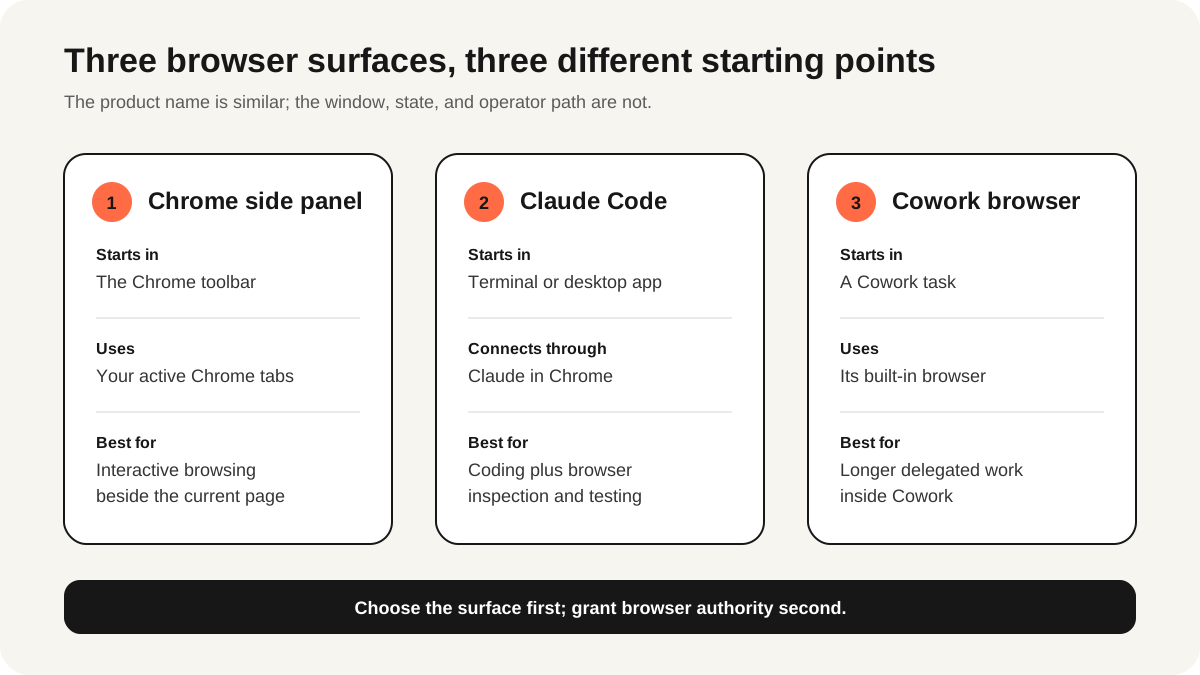
This guide separates the three products people often collapse into one name: the Chrome side panel, the connector used by Claude Code or Claude Cowork, and Cowork's separate built-in browser. It then gives a least-privilege setup that you can reverse without exposing every open tab.
What is Claude in Chrome?
Claude in Chrome is a browser-control extension, not a search add-on. Anthropic says it can read pages, click controls, type into forms, switch tabs, inspect console and network state, and run multi-step browser workflows. Because it operates in the Chrome profile where you are already signed in, it can work on application state that a clean automation browser would not have.
That convenience is also the trust boundary. The official getting-started guide lists debugger, scripting, tabs, downloads, storage, native messaging, and other Chrome permissions. Those permissions enable the advertised behavior; they also mean you should treat the extension like an operator sitting at an unlocked browser, not like a passive chatbot.
Who can use Claude in Chrome?
Anthropic currently lists Claude in Chrome for Pro, Max, Team, and Enterprise subscribers and all public models. It is generally available through Claude Code and Claude Cowork, while the Chrome side panel remains beta. Pro accounts may still see the older side panel while the Cowork-backed experience rolls out. Team and Enterprise access can also depend on organization policy.
| Surface | Where the work starts | Best fit |
|---|---|---|
| Chrome side panel | Claude icon in Chrome | Working beside the page you are viewing |
| Claude Code connector | Terminal coding session | Build, inspect, fix, and verify loops |
| Claude Cowork connector | Cowork task | Longer browser workflows using your Chrome |
| Cowork built-in browser | Claude Desktop | Work that should not touch your open Chrome tabs |
How do you install Claude in Chrome?
Open Google Chrome or Microsoft Edge, visit the verified Claude listing in the Chrome Web Store, and confirm that the publisher points to claude.com. Add the extension, sign in to the intended Claude account, pin it, and open its side panel. Do not install similarly named search extensions; the official listing's extension ID is fcoeoabgfenejglbffodgkkbkcdhcgfn.
Open the official Chrome Web Store listing, then read the permission dialog rather than clicking through it automatically. The debugger permission enables control and screenshots; tabs and tabGroups let Claude find and organize work; downloads and nativeMessaging expand what the extension can hand off. If your task does not justify those capabilities, use a clean browser or a lower-privilege tool instead.
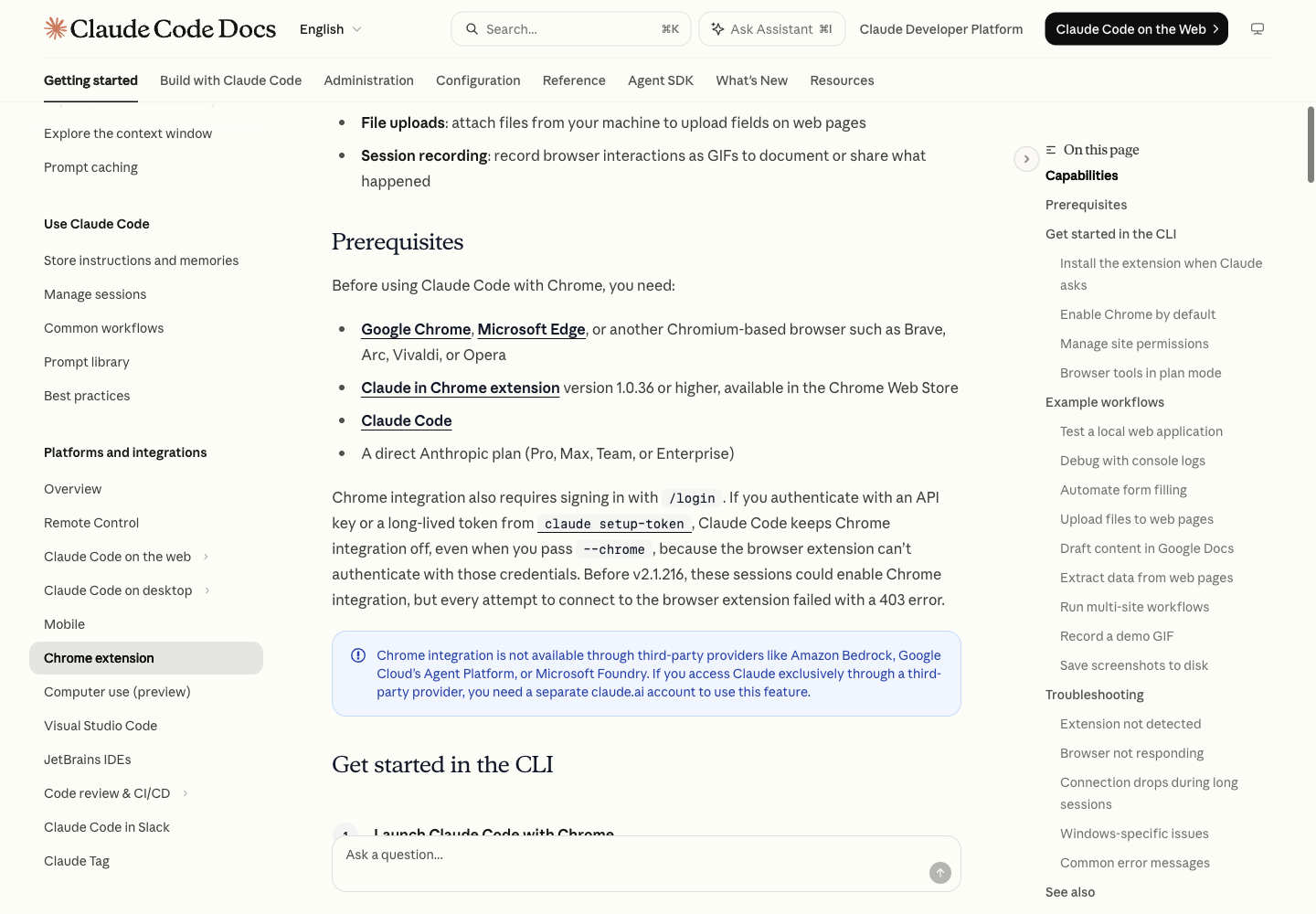
What the live listing and official demo add
On September 10, we opened the exact Web Store listing in ego(lite), not a search result or third-party download page. It identified claude.com as the verified publisher, extension version 1.0.91, a September 4, 2026 update, a 6.44 MiB package, and disclosures covering website content, web history, user activity, location, personal communications, and personally identifiable information. Those values are a dated snapshot, not permanent product guarantees.

The official demo is more useful than a generic feature reel because it names three complete jobs: consolidate dashboard data into an analysis document, resolve comments in a slide deck, and hand a visual reference to Claude Code before testing the result in Chrome. Together they show the product's real unit of work: a cross-tab workflow with a reviewable artifact, not an isolated click. The same video also exposes the Act without asking control, which is why permission mode belongs in the workflow design rather than in a footnote.
Which permission mode should you choose?
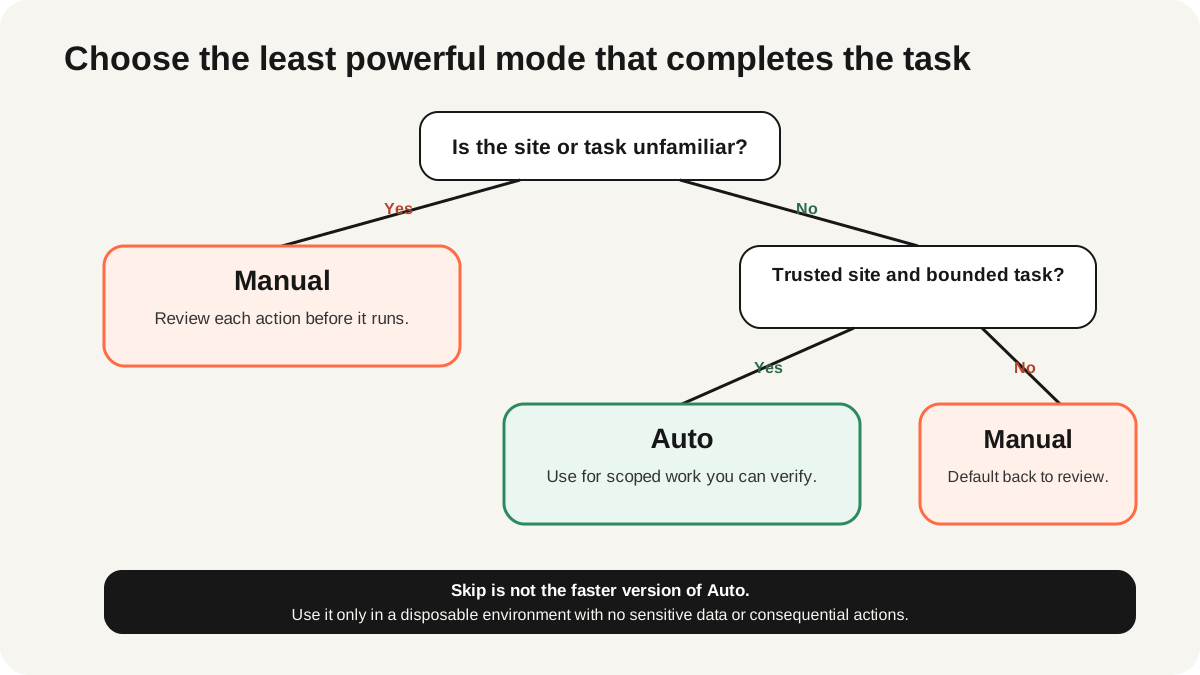
Start with Manual. It pauses before each action, so you can verify the site, account, input, and consequence. Auto removes most pauses but still runs Anthropic's safety review and can block or escalate an action. Skip removes both the routine prompts and automatic action checking; use it only when every page, connector, file, and instruction is trusted and the environment is disposable.
| Mode | Behavior | Use it when |
|---|---|---|
| Manual | You approve each action | The site or consequence is unfamiliar |
| Auto | Safety checks run; risky actions may pause | The task is bounded to trusted sites |
| Skip | No routine prompts or automatic action review | A disposable environment contains no valuable data |
The current permissions guide says some protected actions still require explicit permission, even when a site is always allowed. It also lists actions Claude will not perform, including purchases, account creation, financial trades, permanent deletion, and instructions taken from emails or webpage content. Treat those blocks as product boundaries, not errors to bypass.

How does it connect to Claude Code and Cowork?
In Claude Desktop, open Settings, choose Connectors, configure Claude in Chrome, turn the connector on, and install the extension if needed. The connector is disabled by default for each conversation, so select it when the task should use Chrome. Claude Code can then use the extension for a build-test-verify loop: write code in the terminal, inspect the deployed page, read console or network evidence, fix the source, and verify again.
Cowork can use the same extension or a separate built-in browser. Choose the preferred browser in Settings > Cowork. The extension works on your current Chrome tabs and accounts; the built-in browser starts in its own surface and does not touch your open tabs or saved logins unless you explicitly import or create session state there. That distinction matters more than the interface: one path borrows your profile, the other contains the work.
For the coding-specific alternatives, compare the five Claude Code browser routes and the guide to authenticated browser sessions before standardizing a team workflow.

What is a safe first workflow?
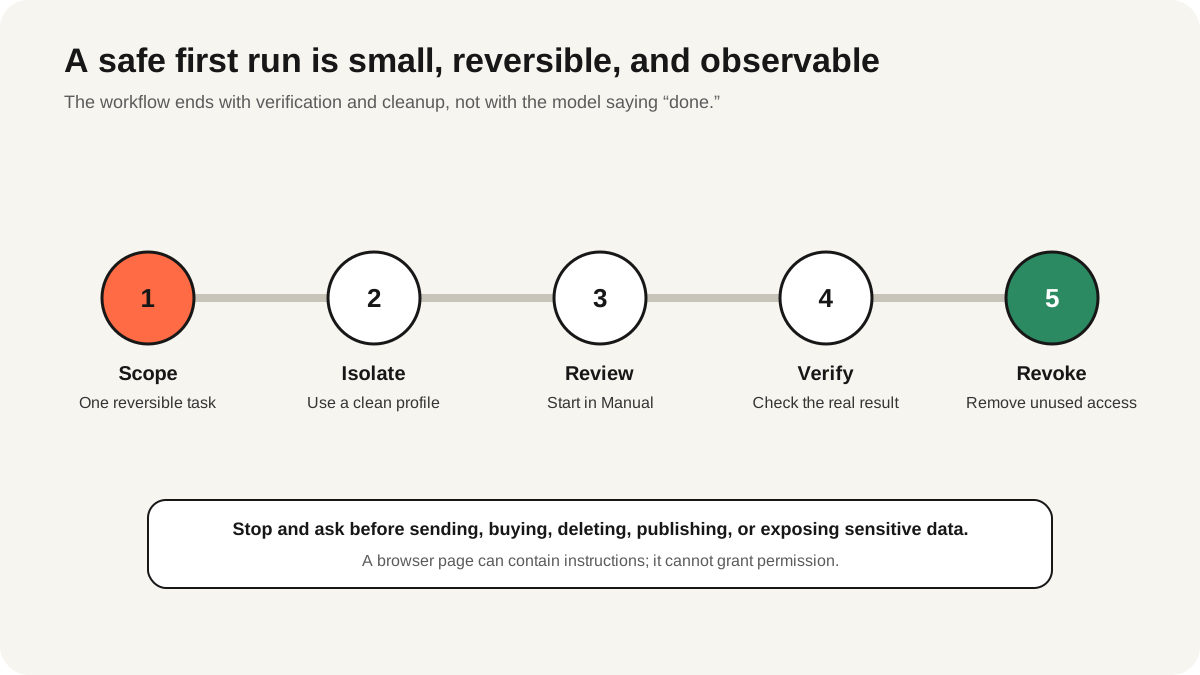
Use a test account on a site you control. Close unrelated tabs, switch to Manual, and ask Claude to summarize the current page before granting any action. Next, allow one harmless action such as opening a known link. Verify the destination and browser history, then try a reversible form entry without submitting it. This sequence proves visibility, navigation, and typing without creating an external side effect.
- Use a separate Chrome profile with no personal email, banking, or regulated data.
- Set Manual mode and approve only the site needed for the task.
- Begin with read-only inspection, then one reversible action.
- Review the final page state and any downloaded file before using it.
- Revoke persistent site permission when the workflow is complete.
Anthropic's safety guide reports an internal attack-success rate below 0.08% for its current defenses, while emphasizing that the risk is not zero. That figure is Anthropic's own internal testing, not an independent audit. Its practical recommendation is stricter: avoid financial, legal, medical, sensitive company, and other people's personal data, and consider a separate profile.
Why is Claude in Chrome not working?
Identify the failed layer before reinstalling. If the extension will not install or sign in, confirm a paid plan and organization access. If Claude cannot see the page, refresh it and grant the current site's permission. If clicks fail, update Chrome, disable conflicting extensions, and retry a smaller task. If Claude Code or Desktop cannot connect, update or restart the extension and the calling app, then confirm the connector toggle is active.
| Symptom | Likely layer | First check |
|---|---|---|
| Install or sign-in missing | Plan or admin policy | Paid plan and organization enablement |
| Claude cannot read the page | Site permission or page load | Refresh and approve the exact site |
| Clicks or typing fail | Chrome or extension conflict | Latest Chrome; disable conflicting extensions |
| Code or Desktop cannot connect | Connector bridge | Connector toggle; restart both endpoints |
The official troubleshooting guide also notes that browser interactions consume the same plan allowance as Claude or Claude Code and are more compute-intensive than ordinary chat. A task stopping after many steps may be a usage-limit problem rather than a DOM or permission failure.
What are Claude in Chrome's limits?
Claude in Chrome doesn't turn a personal browser into an isolated automation runner. It shares your browser profile and plan allowance, supports Chrome and Edge rather than every Chromium browser or mobile device, and can be stopped by site policy, organization policy, safety classifiers, or protected-action rules. The beta side panel can also change as Cowork features roll out. A successful read doesn't guarantee permission to click, download, submit, or continue a long task. Plan for a person to review consequential steps and for the workflow to stop safely when authority changes.
Use Claude in Chrome when the useful state is already in the tab in front of you and you want to watch or approve the work. Use a separate browser when the task should run in the background, shouldn't see unrelated tabs, needs repeatable isolation, or will compete with your mouse and keyboard. This is a workflow boundary, not a model-quality judgment.
When is ego(lite) a better fit?
ego(lite) answers that background requirement with Spaces, which give you and the agent separate areas in one browser, so a long extraction or a repetitive workflow runs while your own window stays free.
That makes ego(lite) a complement to Claude, Claude Code, and the Claude in Chrome model, not a replacement for any of them. Keep Claude in Chrome when the exact object is the live tab in front of you and you want to approve each visible step. Choose ego(lite) when the missing requirement is a browser with no extension to install, no per-site permission prompts, and no connector to restart. Try that workflow in ego(lite) after reviewing the account and site boundaries.
See the Chrome DevTools MCP versus Claude in Chrome comparison for a debugging-focused decision, or review the broader browser-agent security model before automating a sensitive workflow.
FAQ
Is Claude in Chrome free?
No. Anthropic currently makes Claude in Chrome available to paid Pro, Max, Team, and Enterprise plans. Usage counts against the allowance shared with other Claude interfaces.
Is Claude in Chrome still beta?
The Chrome side-panel experience is still labeled beta. Anthropic describes Claude in Chrome as generally available through Claude Code and Claude Cowork, so the answer depends on the surface you mean.
Does Claude in Chrome work in Edge, Brave, or Arc?
Anthropic's Claude Code documentation supports Google Chrome and Microsoft Edge. Brave, Arc, other Chromium-based browsers, mobile devices, and WSL are not supported; a similar browser engine does not guarantee native messaging or policy compatibility.
Can Claude in Chrome use my logged-in websites?
Yes, when you grant access to the relevant site. That is the main advantage and the main risk: the extension operates inside the profile that holds your tabs, cookies, and active sessions.
What is the safest permission mode?
Manual is the safest general starting point because you inspect every action. It does not make a malicious page harmless, so use trusted sites, a separate profile, and reversible tasks.
Why can Claude see a page but not click it?
The site may need a separate action permission, the page may still be loading, another extension may interfere, or Anthropic's safety layer may block the action. Check the permission prompt before reinstalling.