

A CSV can look tidy while a merged header puts every number in the wrong year. To extract tables from PDF documents for an AI workflow, preserve the source and table structure before asking a model to summarize the rows. Choose a parser for the document you actually have, then check the cells that determine the answer.
PDF table extraction turns positioned text or scanned pixels into rows and columns. The difficult part is preserving what each cell means: its header, unit, footnote and location. A readable spreadsheet alone does not establish that relationship.
When the source sits behind a login or a browser interaction, ego (lite) gives your coding agent a visible Space for finding the authorized document and lets you review the source. Keep acquisition separate from parsing: a browser download is the input, not proof that the extracted table is correct.
Which extraction route fits your PDF?
Start with a representative page. Try selecting the text, inspect the column boundaries and check whether the file contains scans, repeated headers or merged cells. A selectable text layer may itself come from OCR, so verify a few labels and numbers against the visible page.
The table below maps source characteristics to a starting route. These are workflow choices, not an accuracy ranking.
| Source characteristic | Starting route | Check before trusting output |
|---|---|---|
| Native text with clear grid lines | A layout-aware parser such as pdfplumber | Cell boundaries, header paths and missing rows |
| Text PDF needing one small export | Tabula area selection and preview | Selected region and exported column alignment |
| Scanned or rotated pages | OCR preprocessing, then table parsing | Characters, language, orientation and table structure |
| Multi-page or merged-header table | Parse page regions separately | Continuation, repeated headers, spans and footnotes |
| An actual HTML table on the source page | Parse the table markup directly | Correct table, displayed filters and header levels |
Tabula's official documentation explicitly limits its extraction route to text-based PDFs. pdfplumber's README describes table detection from page geometry and notes that it works best on machine-generated files. Neither statement guarantees correct output for a particular layout.
If an HTML table and a PDF both exist, compare their reporting date and scope before choosing the easier format. A convenient table can be a different revision. If the publisher offers an official CSV or API with the same data, evaluate that source before reconstructing a PDF.
What should you keep before extracting a table?
Keep the original file unchanged, its retrieval URL, the time retrieved and a content hash. Record the report title, page number and table label. When a file is downloaded through an authenticated page, also retain the public source-page URL where possible; keep session credentials out of the extraction record.
Create a small manifest before running the parser. Include the tool and version, options, selected pages or crop regions, and the location of the derived output. A SHA-256 identifies the bytes you processed; it does not prove the publisher's identity or the truth of the content.
Use separate fields for original text and normalized values. The following illustrative record has an intentionally unreviewed status. Its example values do not describe a real report.
{
  "source": {
    "url": "https://example.com/report.pdf",
    "sha256": "<hash of original bytes>",
    "page": 4,
    "table_label": "Revenue by region"
  },
  "cell": {
    "row_index": 2,
    "column_index": 1,
    "header_path": ["Revenue", "2025"],
    "row_label": "North",
    "raw_text": "1,240",
    "normalized_value": 1240,
    "unit": "USD millions",
    "footnote": null
  },
  "review_status": "unreviewed"
}
Record coordinates when the extractor exposes them. Do not invent a bounding box or numeric confidence to make the record look complete. A missing unit should stay unknown until checked against the header or footnote.
How can you extract a text PDF without hiding errors?
Extract a raw candidate first. Inspect it before renaming columns, filling blanks or merging pages. The Python example below uses pdfplumber to save detected tables with their page and table bounding box; it deliberately leaves headers and blank cells unchanged.
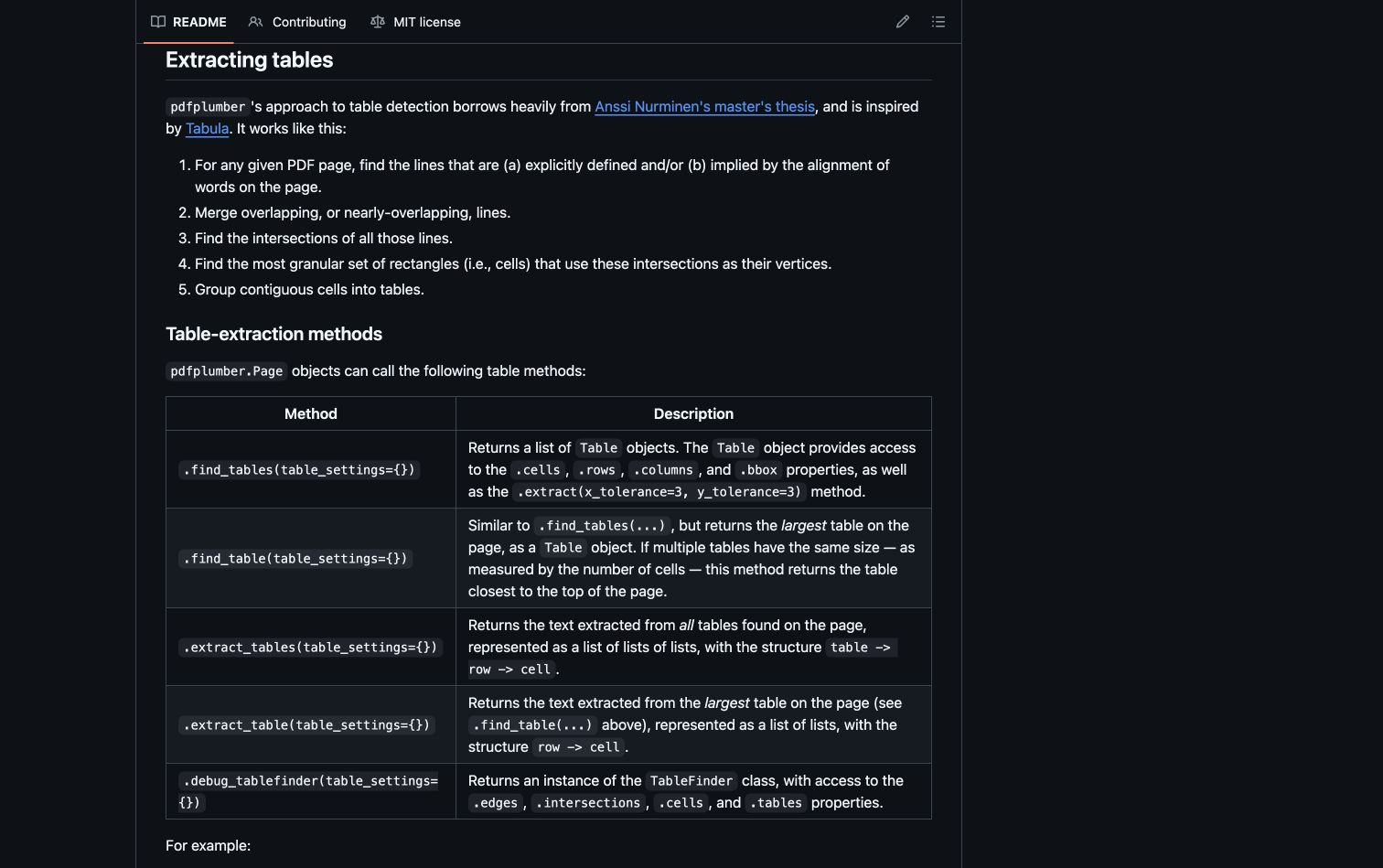
Install pdfplumber in your Python environment and set PDF_PATH to a file you are authorized to process. This is a starting script for native text PDFs, not a benchmark or a guarantee of extraction quality.
import hashlib
import json
import os
from pathlib import Path
import pdfplumber

path = Path(os.environ["PDF_PATH"])
original_bytes = path.read_bytes()
digest = hashlib.sha256(original_bytes).hexdigest()
candidates = []

with pdfplumber.open(path) as pdf:
    for page in pdf.pages:
        for index, table in enumerate(page.find_tables()):
            candidates.append({
                "source_sha256": digest,
                "page": page.page_number,
                "table_index": index,
                "table_bbox": list(table.bbox),
                "rows": table.extract(),
                "review_status": "unreviewed",
            })

Path("table-candidates.json").write_text(
    json.dumps(candidates, ensure_ascii=False, indent=2),
    encoding="utf-8",
)
The pdfplumber table API exposes detected tables and their geometry. If the default detector misses a borderless table, inspect the page layout and adjust its table settings or crop region. If no tables are found, record that outcome instead of returning an empty dataset as a successful extraction.
Keep a raw candidate alongside any cleaned version. After inspecting the source, document which rows are headers and what each header level means. Forward-filling every blank can incorrectly copy a value into a genuinely empty cell. Removing every repeated-looking row can erase a legitimate record.
When do scanned PDFs need OCR and manual review?
A scanned PDF needs a text-recognition step before a text-based table parser can read its characters. OCR adds another source of uncertainty: a clear-looking result can still confuse digits, decimal separators or negative signs.
OCRmyPDF's cookbook documents rotation and deskew options. For a scan that needs those corrections, a preprocessing command can look like this:
ocrmypdf --deskew --rotate-pages input-scan.pdf searchable.pdfRetain input-scan.pdf as the original. Hash the derived file separately, record OCR settings and select the appropriate document language. A searchable PDF still needs table extraction; OCR does not establish row and column relationships.
Use this review table to decide what to inspect after extraction. A parser's output is a candidate until these checks are resolved.
| Failure mode | What to compare with the original | Safe handling |
|---|---|---|
| Missing minus sign or decimal | Full cell and its unit | Correct with a recorded source reference |
| Merged header flattened incorrectly | Every header level above the column | Preserve an explicit header path |
| Blank interpreted as zero | Cell, legend and neighboring rows | Keep null unless the source defines zero |
| Continuation attached to wrong table | Caption, columns and page boundary | Keep separate until alignment is established |
| Footnote detached from value | Marker and footnote text | Store the qualification with the record |
Review all cells that determine a consequential answer. For a larger exploratory dataset, combine targeted review of risky cells with a documented sample of ordinary rows; do not present sampled review as full verification.
How do HTML tables enter the same AI workflow?
An HTML table can avoid reconstructing PDF geometry, but the meaning checks stay the same. First confirm that the markup contains the table you saw, including the selected date range and any expanded rows. A client-rendered table may be absent from the initial HTML response.
The pandas read_html reference describes reading HTML tables into a list of DataFrames. The official API reference below documents the input and parsing options.
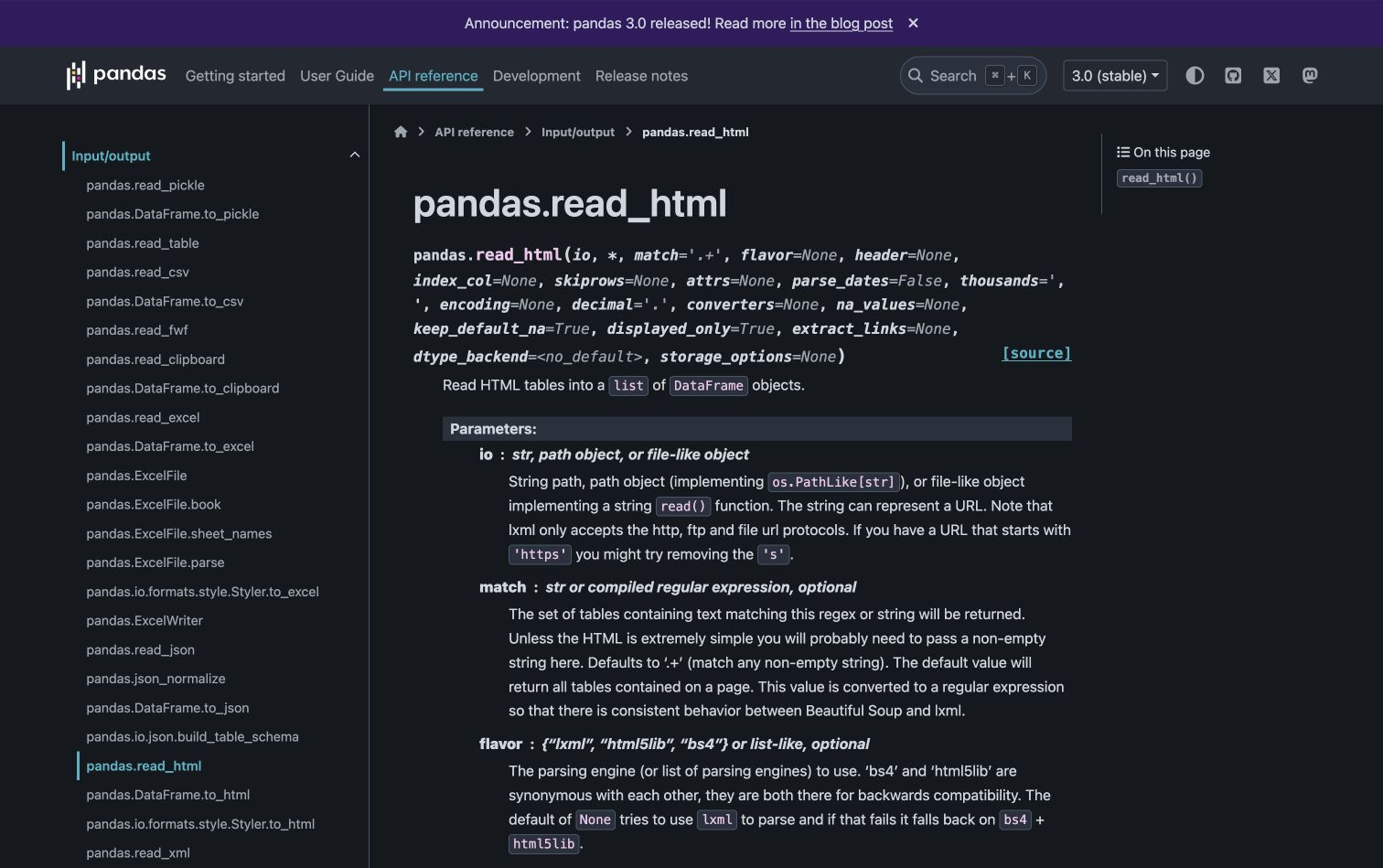
This small example selects a known table from HTML you already captured with permission:
from io import StringIO
from pathlib import Path
import pandas as pd

html = Path("source-page.html").read_text(encoding="utf-8")
tables = pd.read_html(StringIO(html), attrs={"id": "revenue"})
if len(tables) != 1:
    raise ValueError("Expected exactly one revenue table")
raw_table = tables[0]
raw_table.to_json("html-table-candidate.json", orient="split")
The table ID is an example contract; adapt it to the inspected page. If header rows form several levels, set the parsing options after checking those rows. DataFrame output is not a complete archive of the original HTML structure: retain the markup when spans or links matter.
Map both HTML and PDF candidates into the same reviewed record format. For HTML, use the source URL, capture time, filters, table identifier and original cell text; for PDF, add page and geometry. Preserve row/column spans in a separate structural record when they affect interpretation. Do not pretend an HTML row has a PDF page number.
How do you decide that extracted data is ready for AI?
Define acceptance before generating a summary. Choose the exact fields the downstream task needs, and specify how uncertainty will appear in the answer. For example, a comparison of revenue needs aligned periods and units, not just parseable numbers.
The following acceptance table is a protocol to apply to your files. It reports no measured results.
| Acceptance check | Evidence to retain | Hold the output when |
|---|---|---|
| Source identity | URL, original hash and retrieval record | Revision or origin is uncertain |
| Table completeness | Expected pages/regions and row counts | A continuation or region is missing |
| Field meaning | Header path, unit and qualifications | Columns cannot be mapped reliably |
| Cell fidelity | Reviewed raw text and normalized value | Material mismatches remain unresolved |
| Reconciliation | Source totals where available | A mismatch has no documented explanation |
| Traceability | Answer claim linked to source cells | The supporting cells cannot be located |
A matching total is useful, but offsetting mistakes can produce the same total. Reconciliation supplements cell review. When values remain ambiguous, exclude them from a definitive calculation or label the answer incomplete.
Give the model reviewed records and their source references. Ask it to cite the relevant rows and preserve qualifications. Check its arithmetic separately. If it invents a missing value or drops the unit, reject that answer even when the prose sounds plausible.
Where does ego (lite) help with the source handoff?
A coding agent can use the visible ego (lite) workspace to read and check an authorized source. The October 12, 2026 recording below shows Codex working with the BLS September 2026 Employment Situation PDF: Table A-1, TOTAL section, and the seasonally adjusted August and September columns.
The Space documentation explains how tasks are organized into browser workspaces. You can keep the source visible while reviewing the reported values. Select any image to view it at full resolution.
How is the PDF task organized in a Space?
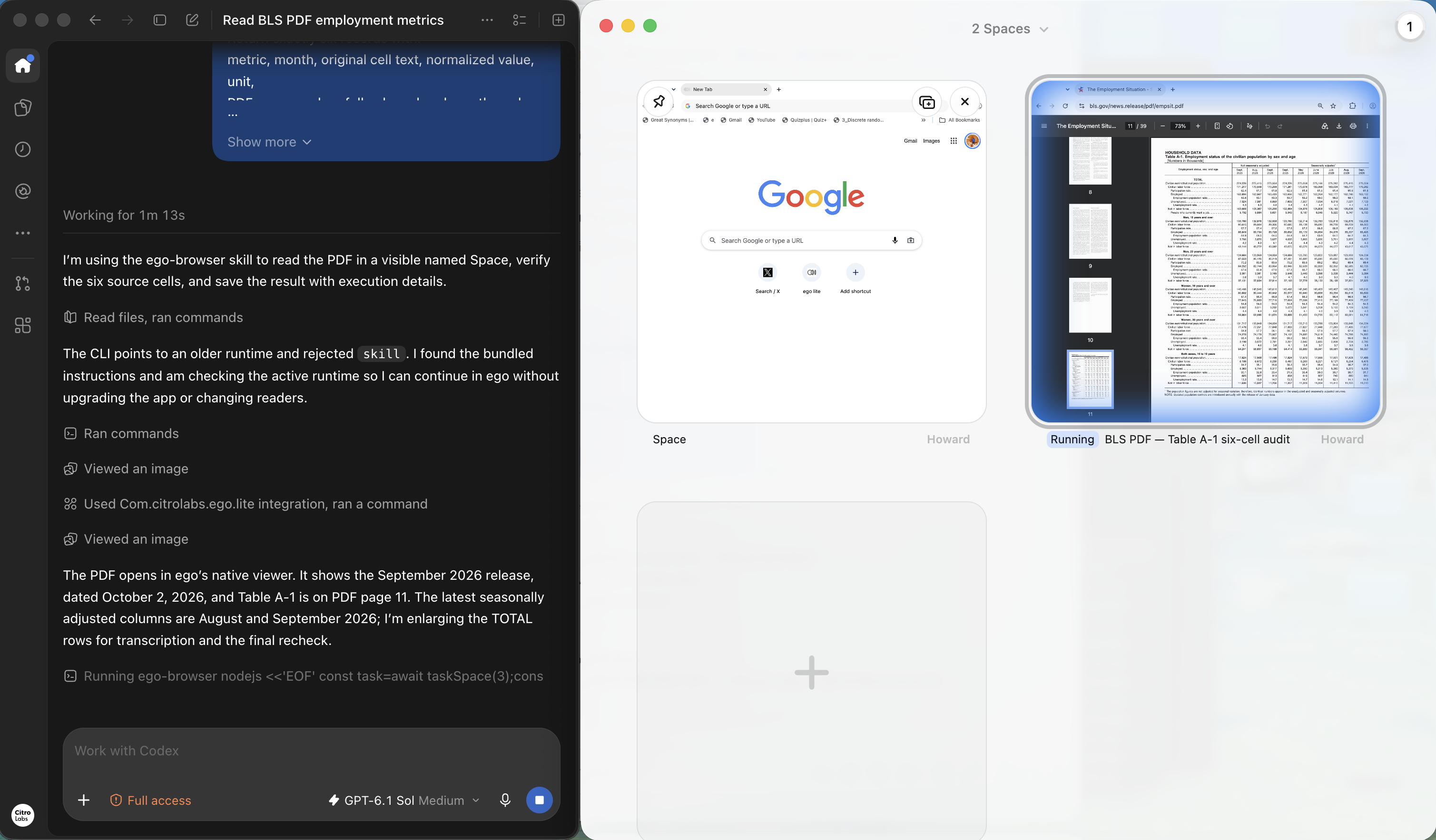
The overview keeps the named BLS PDF task identifiable beside another Space. The BLS card is marked Running while the other card shows a new-tab page. Naming each task for its source helps a reviewer find the right workspace when several Spaces are open.
What is visible while the agent reads the PDF?
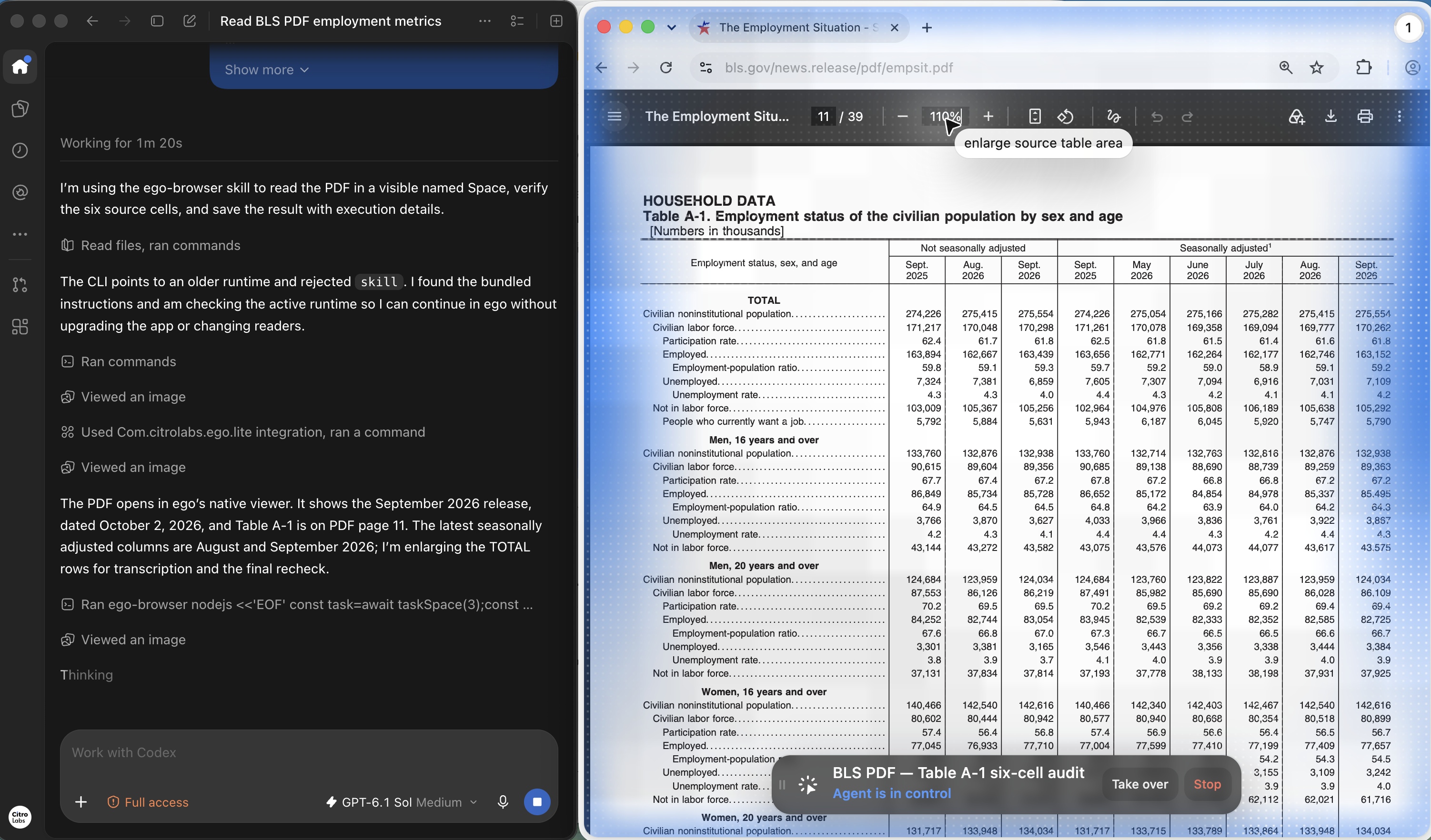
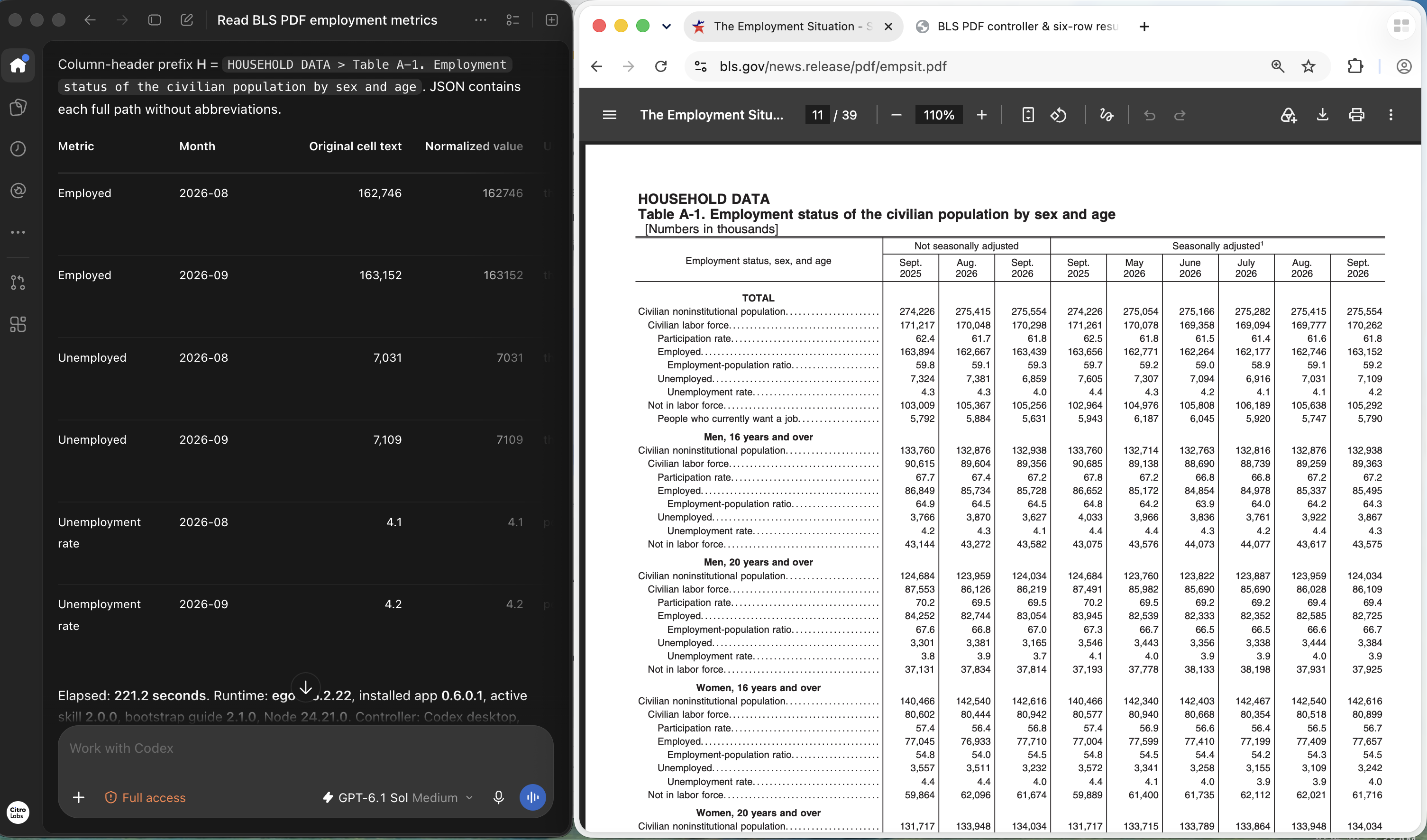
The native viewer keeps the original BLS URL and PDF page 11 visible while the agent enlarges the TOTAL rows for transcription and rechecking. The live control bar includes Take over and Stop, so a reviewer can intervene if the agent selects the wrong column group.
How can a reviewer check the selected cells?
The source-check frame places the reported values beside the original PDF. The rightmost August and September 2026 columns belong to the Seasonally adjusted group. Repeated month names also appear in the unadjusted group, so the month label alone would be an incomplete source reference.
What does the six-record result retain?
The result report retains original cell text, normalized values, units, PDF page and the full column-header path. A reviewer can follow each record back to its row and grouped month header, rather than checking a number without its context.
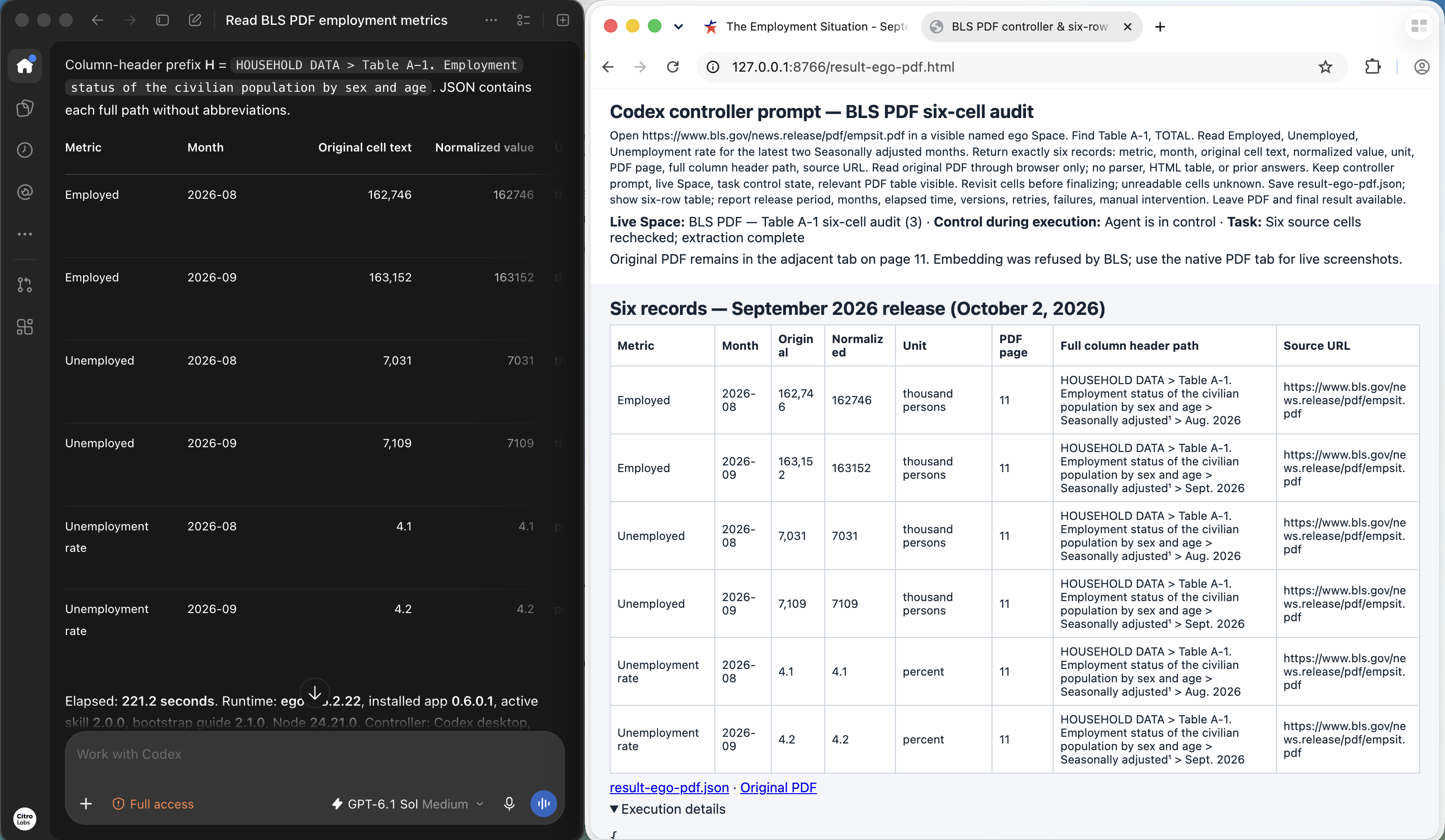
For readability, the values shown in the captures are transcribed below. They match the corresponding TOTAL cells in the BLS PDF and official HTML Table A-1 as checked on October 12, 2026. These are seasonally adjusted values for the September 2026 release.
| Metric | August 2026 | September 2026 | Unit |
|---|---|---|---|
| Employed | 162,746 | 163,152 | Thousand persons |
| Unemployed | 7,031 | 7,109 | Thousand persons |
| Unemployment rate | 4.1 | 4.2 | Percent |
This is one visible native-text PDF reading case. The documentation images explain the pdfplumber and pandas routes; they are not matched extraction runs. The captures do not establish scanned-PDF OCR accuracy, a speed advantage or parallel-task throughput. Keep the original run output and logs when extending this case into a reproducible comparison.
What are the limits of this extraction workflow?
The extraction protocol checks traceability and the fields you review. It does not establish that the publisher's underlying data is true, or that an unreviewed cell elsewhere in the report is accurate. A change in layout or document language can require new parsing settings and another review.
For an ongoing pipeline, retain failed candidates and keep a representative set of difficult source pages. Recheck the pipeline when a parser, OCR configuration or source template changes. This guide specifies the workflow; it provides no measured cross-tool accuracy comparison.
FAQ
Can I extract tables from a PDF for free?
Tabula and pdfplumber offer open-source routes. The practical cost includes setup and review; choose by document type and validate the output before relying on it.
Why does copying a PDF into Excel scramble columns?
PDF text can be positioned visually without the row/column structure a spreadsheet expects. Copying text can lose that geometry or read it in an unsuitable order.
Does OCR solve table extraction?
OCR recovers text from pixels. Table detection and header interpretation remain separate steps, and recognized characters still need review.
Is a CSV suitable input for an LLM?
A CSV can carry values, but it often needs an accompanying schema and provenance record. Include units, qualifications and the source references used to support answers.
Should I fill every blank cell automatically?
Preserve blanks until you know what they mean. A merged header, missing observation and intentional empty cell require different treatment.
How should I combine tables across pages?
Confirm matching captions, columns, units and continuation markers. Retain page references for each row and document any removed repeated headers.
Can I upload a confidential PDF to an online extractor?
Check your organization's permissions and the service's handling terms first. A local workflow may be appropriate when uploading is not authorized.
What if a parser returns no tables?
Inspect the page and detection settings, and consider whether the file is a scan or a borderless layout. Record the failed detection explicitly rather than silently accepting empty output.
Do I need to keep the original after cleaning?
Keep the original and a transformation record so a reviewer can reconstruct how a field was derived. Clean output alone cannot explain a changed value.
What is the first useful test of this workflow?
Choose one representative table, define the required fields, extract a raw candidate and compare it cell by cell. Add harder layouts only after that path is understood.
Related reading
For the opposite direction, see generating PDFs with Playwright and Puppeteer. For browser execution and review, read computer use agents and their controls. Start your own extraction with one table whose source and expected fields you can review.