How to use ego(lite) with Codex
Set up Codex browser automation with ego(lite). Enable Full access, load ego-browser in Desktop or the TUI, and complete a browser task.
Codex can control ego(lite) from either its desktop app or terminal interface. In this guide, Codex opens Anthropic's X profile in an ego(lite) agent Space, reads the first five posts, and returns the result in the conversation.
The complete video above follows the Desktop workflow. The TUI uses the same ego-browser skill and task instructions.
Before you start: install ego(lite)
Install ego(lite) and finish onboarding before you open Codex.
- Download the DMG and open it
- Follow the instructions and double-click the ego(lite) icon to install
- Open ego(lite) and finish onboarding
- Open Codex Desktop, or install the Codex CLI for your terminal
Onboarding writes the ego-browser skill to ~/.agents/skills/. If Codex was already running, quit and reopen it so the new skill appears.
Choose Codex Desktop or the TUI
For Desktop, open a project and start a new task. For the TUI, open Terminal in the project directory and run:
codex --dangerously-bypass-approvals-and-sandboxThis command starts Codex with approval prompts and the sandbox bypassed. You can use the same ego-browser command and task prompt in both interfaces.
Step 1: switch to Codex mode
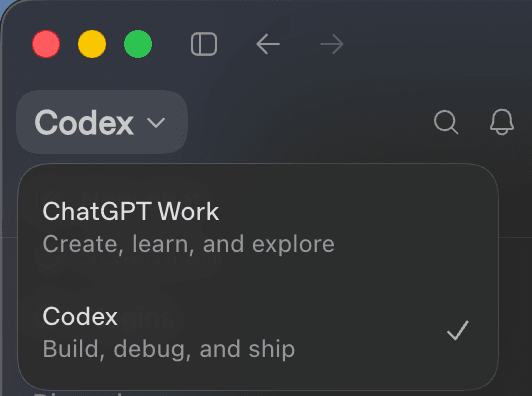
If you're using the ChatGPT desktop app (the former Codex desktop app), switch the mode in the top-left to Codex before you start. If you're using the Codex TUI, skip this step.
Step 2: give Codex Full access
Desktop
In Codex Desktop, open the permission selector at the bottom-left of the prompt box. Choose Full access, then confirm the warning.
This setting is what lets ego-browser launch the local ego(lite) app and send browser commands to it. Without it, the launch may be blocked by the sandbox or paused by an approval request.
TUI
For the Codex TUI, start a new session with:
codex --dangerously-bypass-approvals-and-sandboxStep 3: load the ego-browser skill
Desktop
Type /ego in the Codex prompt box and choose ego-browser from the skill picker. You can also type /ego-browser and press Tab to activate the skill.
Once this skill is loaded, Codex can use /ego-browser to freely create Spaces in ego(lite) or control existing ones, then open and operate pages in those Spaces to complete the task. It won't take over your personal tabs. If it doesn't appear, finish ego(lite) onboarding and restart Codex before trying again.
TUI
In the TUI, enter /ego, choose ego-browser, and add the browser task. The Skill then starts ego(lite), creates an agent Space, and operates the page inside that Space.
Step 4: let Codex work in the browser
Now hand the task to Codex. The agent will use ego-browser to open the target page in ego(lite), collect the requested information, and return the result when the task is complete.
Step 5: complete the task
When the run finishes, Codex returns the five posts with their visible details, direct links, and a short summary of each post. Anthropic's X profile remains open in ego(lite), and the browser task is complete.
Troubleshooting
ego-browser doesn't appear
Finish ego(lite) onboarding, quit Codex, and open it again. Type /ego and choose ego-browser. The installed skill should be in ~/.agents/skills/.
Codex loads the skill but ego(lite) doesn't open
Make sure Codex Desktop shows Full access beside the prompt box. In the TUI, close the current session and restart it with codex --dangerously-bypass-approvals-and-sandbox.
X asks you to sign in or verify the account
Take over in the ego(lite) agent Space and complete the login or verification yourself. Then tell Codex to continue in the same Space. Never paste a password or verification code into the prompt.
Go deeper
- Quick start: install ego(lite) and run your first browser task
- Claude Code browser automation: switch from Cowork to Code and set its permissions
- Cursor browser automation: run ego-browser from Cursor Agent
- ego-browser: learn the browser helper commands
- Space: see how agent Spaces stay separate from your own tabs
- How Codex sandboxing and approvals work: read OpenAI's current safety guidance