The short version of the whole article, first: possession decides everything, and each of OpenClaw's four browser options answers "whose browser is this" differently. Default to the managed browser for anything public; attach to your Chrome only while you're sitting there; use the extension relay when you're away and need your Chrome; move recurring logged-in work to an external logged-in browser.
That external option is ego (lite), an agent browser for browser automation: a free browser that inherits your logins from a one-time Chrome import, with OpenClaw on its supported list alongside Claude Code and Codex. OpenClaw drives it through the ego-browser skill, the work runs in isolated Spaces in parallel, and your personal Chrome is never touched.
OpenClaw users asking "how do I let it control a browser" usually discover the answer is plural: the docs ship three distinct browser profiles, a remote-CDP path, and a design philosophy about which to use when.
That's more complete than most agent ecosystems, and it still leaves one option undocumented: OpenClaw commanding an external browser that carries your logins without being your Chrome.
Option 1: The OpenClaw-managed browser
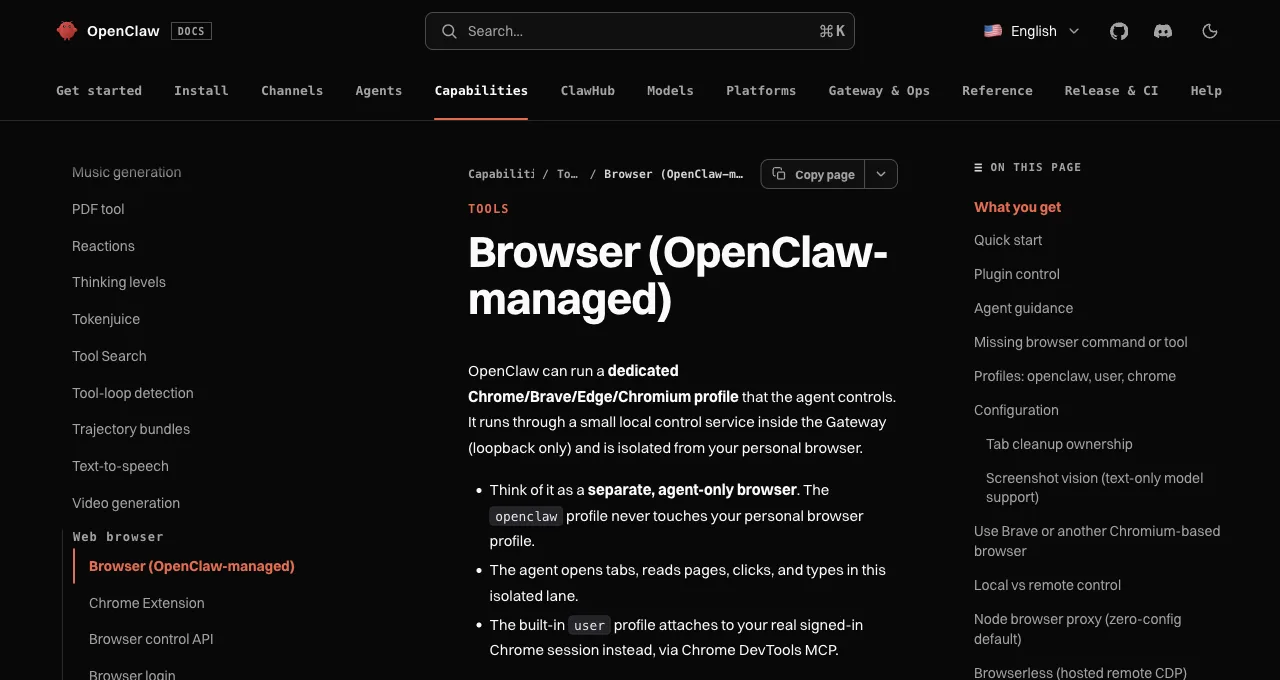
The default, and a genuinely well-designed one: OpenClaw runs a dedicated Chromium-family profile controlled through a local loopback service, described in the docs as "a safe, isolated surface for agent automation and verification" that is explicitly "not your daily driver." It gets its own user data dir and its own ports (18800-18899 range, deliberately avoiding 9222 collisions).
The agent sees one browser tool covering the lifecycle (start/stop/tabs/open/navigate/act/snapshot/screenshot), acts on stable snapshot ref IDs rather than brittle selectors, and a bundled browser-automation skill teaches it the recovery loops. Security defaults are thoughtful: SSRF protection fails closed, and private-network access is off unless deliberately enabled.
Its boundary is the same as every managed browser: no logins. The isolation that makes it safe is exactly what keeps your accounts out, which is why the other three options exist.
One configuration detail that costs new users an hour: tool profiles. The coding profile includes web search and fetch but not the full browser tool; if your agent claims it has no browser, add it explicitly with alsoAllow: ["browser"] rather than hunting for a missing install.
Option 2: Attach to your Chrome (user profile)
Set profile to user and OpenClaw attaches to your real, signed-in Chrome through the DevTools route. The catch is presence: Chrome raises a blocking "Allow remote debugging?" prompt, and as the docs put it, "someone must be at the computer" to approve it.
That makes this the sit-with-it mode: right when you're at the desk anyway (supervising a delicate task in your accounts, debugging a page state only your session shows), wrong for anything scheduled or remote. It shares every property of DevTools auto-connect setups elsewhere: full profile exposure, shared window, turn-taking. The prompt-per-attach friction is deliberate and worth respecting rather than engineering around.
Option 3: The extension relay (chrome profile)
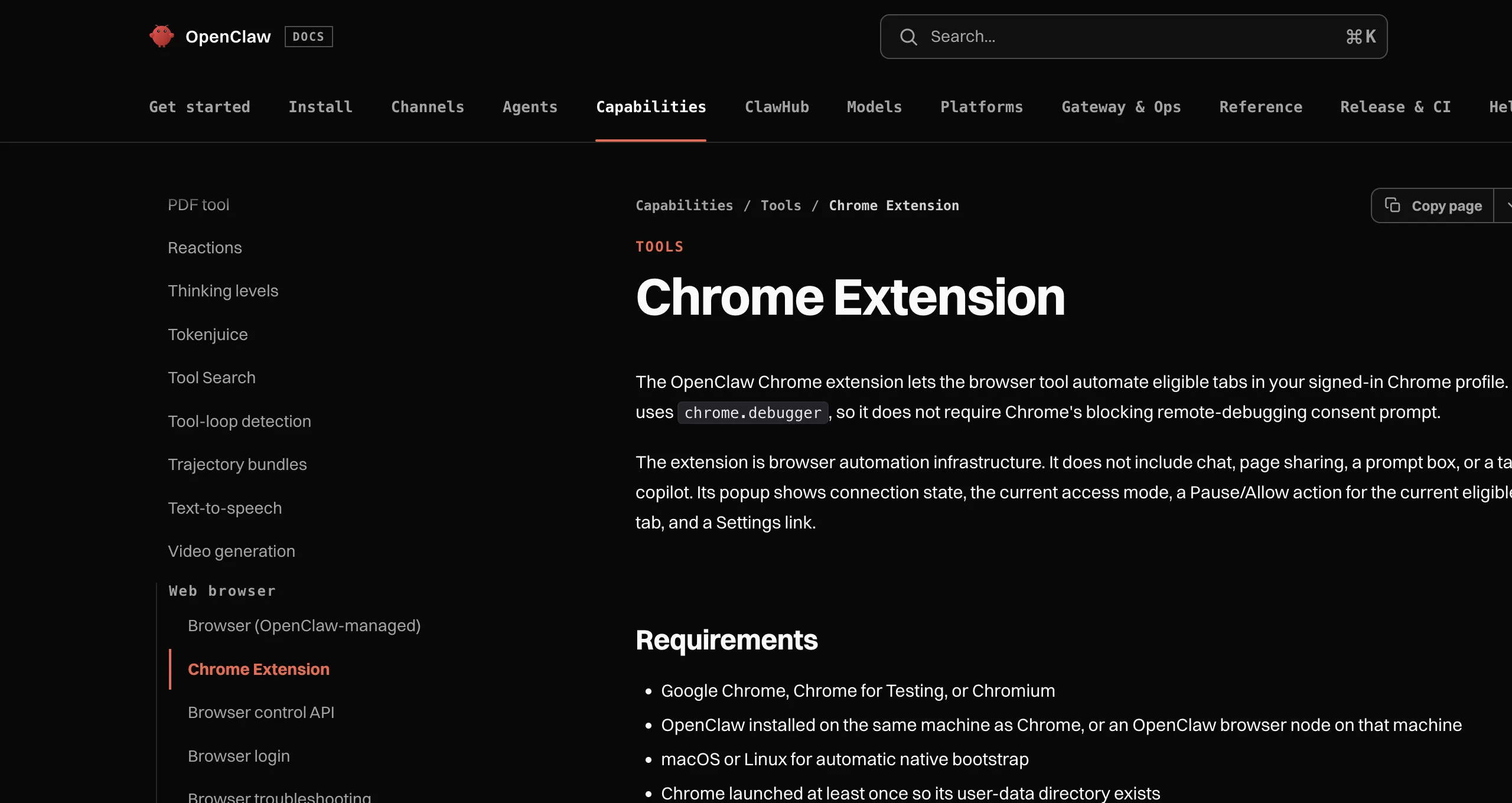
The relay is OpenClaw's distinctive piece: a Chrome extension that drives tabs in your signed-in browser without the remote-debugging port, which means no attach prompt, which means (docs' words) it "works from a phone with nobody at the desk." Pairing happens on the extension's first native call through the Gateway, secured with connection-bound HMAC proofs.
Access control is tab-scoped and worth configuring: All tabs mode exposes everything except paused tabs, while Selected tabs mode uses an OpenClaw tab group as the boundary and immediately detaches anything ungrouped. Incognito, chrome:// pages, and (without a settings flag) file:// URLs stay out of reach.
This is the strongest option when the point is your Chrome, unattended: check something in your accounts while you're away, from your phone. Its cost is the same possession problem every takeover route has: the agent is working in the browser you'll want back at your desk, and heavy parallel work isn't what one personal Chrome is for.
Option 4: An external logged-in browser
The undocumented fourth option is not another possession model but the first three combined: option 1's isolation with options 2 and 3's logged-in access. OpenClaw is a shell-capable agent, and any agent that can run a shell command can drive ego (lite) through the ego-browser skill.
ego (lite) is a free browser built for sharing your logged-in browser state with AI agents (OpenClaw is on its supported list alongside Claude Code and Codex): import from Chrome once, every site you've signed into stays signed in, and the agent works in a Space, an isolated workspace with its own tabs.
The division of labor is clean: OpenClaw plans and issues commands, ego (lite) executes them in a real logged-in browser, and neither touches your personal Chrome at any point. Workflows run as scripts outside the model loop, several Spaces run in parallel, and your own browser stays exactly where you left it.
What this option lacks: OpenClaw's native snapshot-tool integration (the agent scripts instead) and the relay's from-your-phone reach into your actual Chrome tabs.
How do the four options compare?
Three dimensions decide the choice: whose logins, how isolated, and what setup costs.
| Option | Login state | Isolation | Setup cost |
|---|---|---|---|
| OpenClaw-managed | None; agent-only profile | Full; never touches your browser | None; it's the default |
| User attach | Your Chrome, fully | None; it is your browser | A permission prompt per attach, human present |
| Extension relay | Your Chrome, tab-scoped if configured | Tab-group boundary at best | Extension install + Gateway running |
| ego (lite) external | Inherited from Chrome import | Own browser, own Spaces, parallel | Download + onboarding, free |
A single day can legitimately use three of the four. Morning: OpenClaw verifies a docs page renders correctly in its managed browser (public, isolated, default). Midday: a recurring task pulls numbers from two logged-in dashboards through ego (lite) Spaces while you work.
Evening, from your phone: the relay checks one thing in your actual Chrome that only your exact tabs can answer. The first three options compose because each was built for a different possession model; ego (lite) is the one that combines their strengths when the task needs isolation and logins at once.
Download ego (lite) for Mac, free, or see the general guide to agents and login walls; the routes map one-to-one.
FAQ
What is the OpenClaw browser relay exactly?
The Chrome-extension-based driver behind the chrome profile: it relays agent commands to tabs in your signed-in browser through OpenClaw's Gateway, without opening a remote-debugging port, secured by connection-bound HMAC proofs. Its distinguishing property is unattended operation: no attach prompt to approve.
Can OpenClaw use cloud browsers?
Yes: remote CDP profiles attach to hosted providers (the docs name Browserless, Browserbase, and Notte) via a cdpUrl. Same trade as every cloud browser: scale and unattended infrastructure, none of your personal logins.
Can OpenClaw drive ego (lite) and its own managed browser in the same session?
Yes; they don't share anything. The managed browser is a tool OpenClaw owns; ego-browser is a shell command OpenClaw runs. A session can verify a public page in the managed profile and pull logged-in data through an ego (lite) Space back to back, and keeping the two jobs on their designed surfaces is exactly the discipline this guide recommends.
Which option is safest for sensitive accounts?
Ranked by blast radius: managed (can't touch your accounts at all), external ego (lite) (sessions granted, but scoped to task Spaces and a browser that isn't your daily one), relay with Selected tabs (tab-group boundary), then user attach and relay-all-tabs (full profile). Match the option to the task's actual sensitivity rather than defaulting to the most capable.
Why does my agent say it doesn't have a browser tool?
Almost always tool profiles: the coding profile ships web search and fetch but not the full browser tool. Add alsoAllow: ["browser"] to the profile config; no reinstall involved. If the tool exists but won't start, run its doctor subcommand before anything else.
Does the extension relay work on browsers other than Chrome?
The managed profile supports the Chromium family (Chrome, Brave, Edge, Chromium), while the relay path is documented against Chrome with its extension model; check current docs for your specific browser before planning around it.