Quick start
Get Codex, Claude Code, or another AI agent working in the browser on Windows.
ego (lite) is a Chromium browser for you and your AI agent. You can browse with your own tabs while the agent works in a separate Space. If setup offers browser import, you can choose a profile to bring into ego (lite).
Think of the work you do in a CRM, an inbox, a job application portal, an accounting tool, or an internal dashboard. You can give your agent a task on one of those sites, watch its progress, and step in when a decision needs you.
This guide uses a simple research task to show the setup, the first run, and how to see what your agent did.
Before you start: install ego (lite)
If you have already installed ego (lite) and finished setup, jump to the first task. Otherwise, start with the Windows download.
- Download ego (lite) for Windows and run the installer.
- Follow the instructions on screen, then open ego (lite).
- Finish setup and review any option to import data from another browser.
If you import browser data, check what the app will copy and choose the profile you want to use before confirming. You can also sign in to sites directly in ego (lite).
If setup asks for permission to access data from another browser, review the request and follow the instructions shown. Once setup is complete, open your agent and check whether ego-browser appears in its skills.
For a closer look at installation, see Install ego (lite).
Try it: find a popular Reddit post
Get your agent ready
We'll use Codex as the example. Start a local Codex session on the computer where ego (lite) is installed. Type /ego in the input box and select Ego Browser from the skill list. If it is missing, finish ego (lite) setup and restart Codex before checking again.
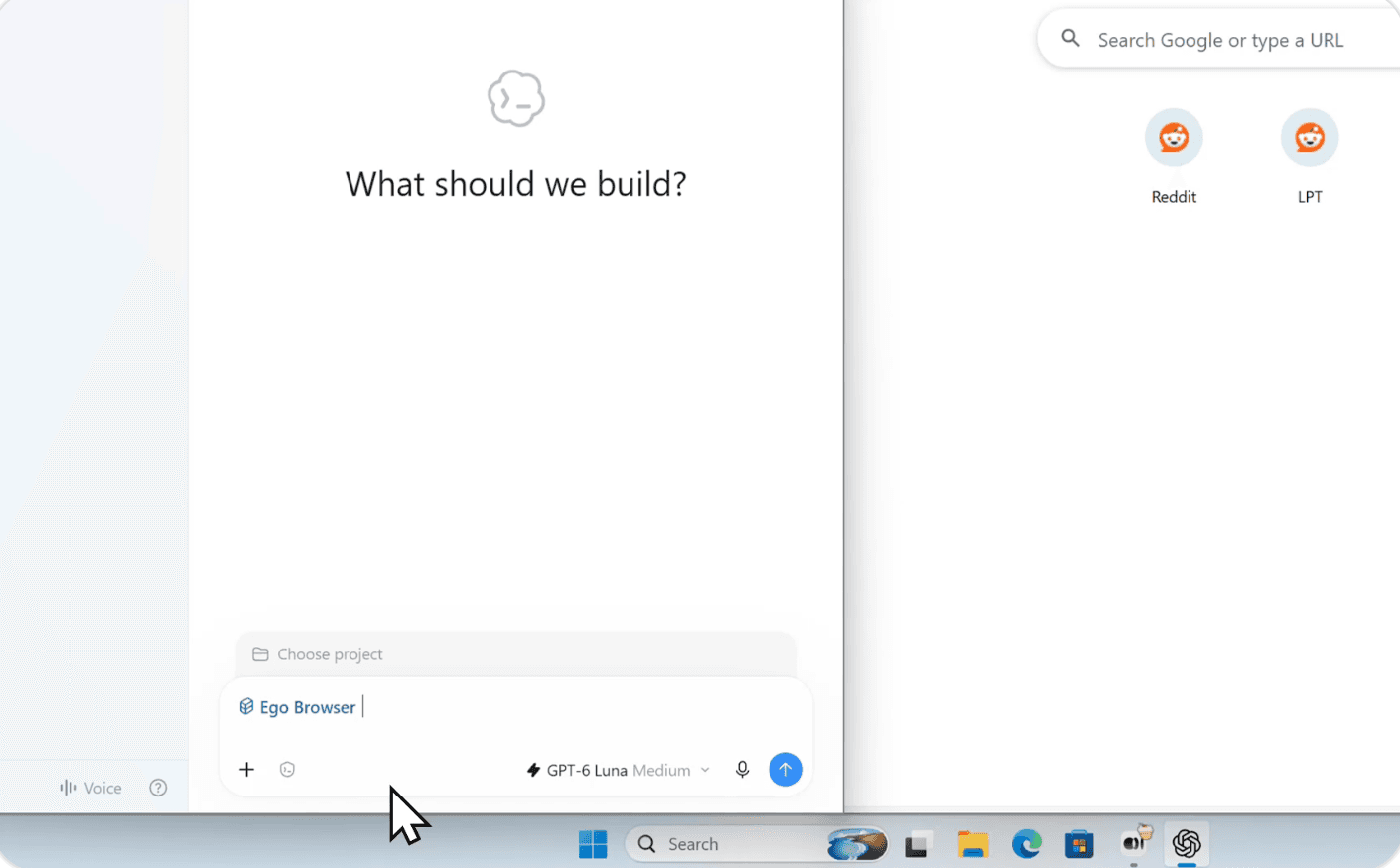
Codex needs permission to run ego-browser on your computer and open ego (lite). Open the permission menu below the input and select Full access, as shown below. If that option is unavailable, make it available in Settings > General > Permissions first. The Codex tutorial covers the full permission setup.
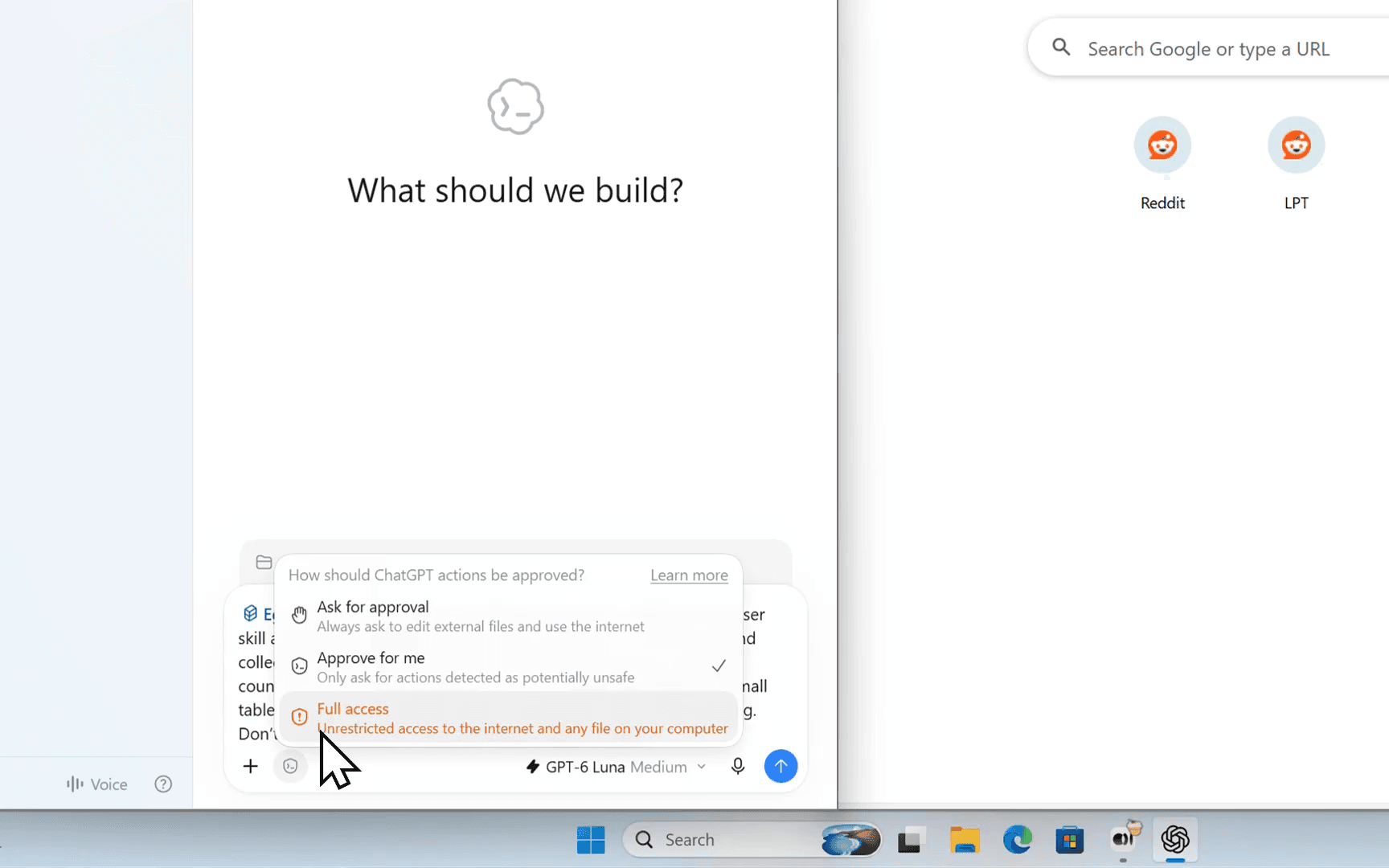
With the skill selected, send this request:
Use ego-browser. Open Reddit and find a popular post from the past week. Open the post and return its title, subreddit, link, posting date, upvote count, comment count, and view count if Reddit shows one. Present the results in a small table. If a figure is not visible, mark it as "not shown" rather than guessing. Do not vote or comment.The agent creates a Space in ego (lite), opens Reddit, reads a post, and returns a table with a source link. Open the link to check the details against the page. In the recorded example, Reddit does not show a view count, so Codex marks it not shown. If the agent cannot reach a page, ask it to tell you which source was unavailable rather than filling in the gap.
See what the agent is doing
While the task runs, open the agent's Space in ego (lite). It shows the pages the agent has opened, while your own tabs stay where they are. You can switch to that Space to follow its work.
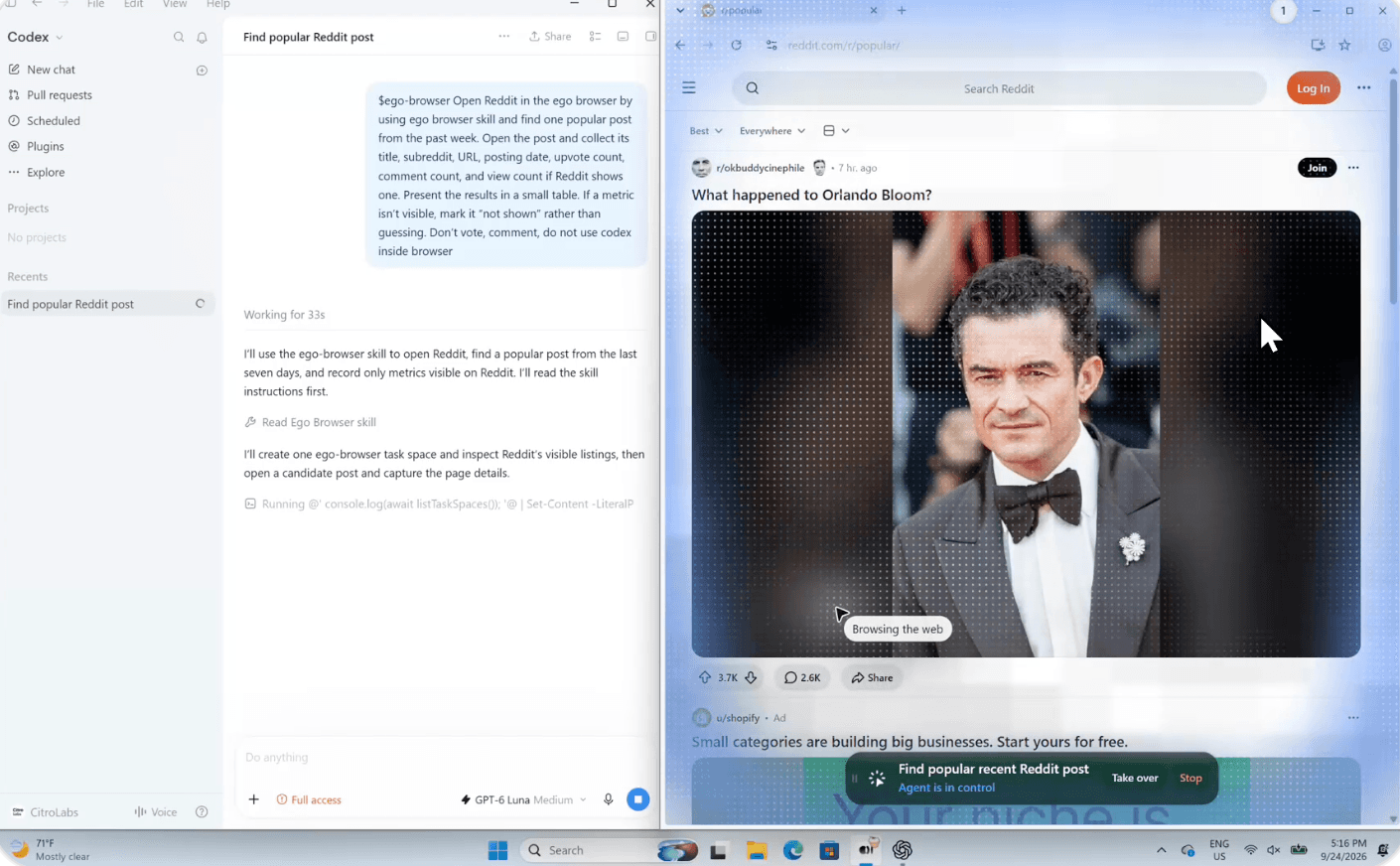
If a site asks for a login, verification code, or other input that only you can provide, take over for that step. The agent can continue when you are done. Its tabs remain in the Space after the task, so you can review the pages behind its answer.
Run your first task shows the full Codex recording. How to use ego (lite) with Codex breaks it into four steps.
What else can you do with ego (lite)?
The Reddit research task is only a starting point. Here are some tasks that benefit from an agent working in your browser:
- Social media: Review posts and replies, gather engagement figures, or draft responses using information from your accounts. You can check the draft before anything is published.
- Job hunting and recruiting: Find roles that match your criteria, open application forms, and prepare answers or uploads. Ask the agent to stop before submitting an application.
- Real estate, finance, and shopping: Compare listings or prices across sites, run on-page calculators, and collect the results in a table or local file. Review any purchase or account action yourself.
- Bookings: Find flights, hotels, or restaurants, compare options, and fill in the routine details. The agent can pause when you need to confirm a reservation or payment.
- Business tools: Gather information from your CRM, analytics dashboards, project tools, or other signed-in services. An agent can follow the same pages and forms you use for regular reporting.
- Internal tools: Check admin pages and staging sites, run through a QA flow, or collect data from a dashboard that is available only after login.
Give the agent a specific goal and say where it should stop for your input. You can always open its Space to see what happened.
Go deeper
- What is ego (lite) explains the browser and how it works with an agent.
- Install ego (lite) covers Windows setup.
- Run your first task gives you the task walkthrough.
- Claude Code and Codex show Windows recordings for each agent.
- OpenCode and WorkBuddy walk through a Tokyo Airbnb search on Windows.
- Hermes Agent shows how to load ego-browser and run a browser task in Hermes Desktop on Windows.
- OpenClaw shows how to set permissions and run a Tokyo Airbnb search on Windows.
- DeepSeek Harness shows how to enable Full access and use ego-browser on Windows.
- Your own Agent Harness explains the connection requirements, with Hermes as a Windows example.
- Local model walks through Ollama setup and a browser task with local Qwen.
- Space explains where the agent's pages live.
- Snapshot shows how the agent reads a page.
- ego-browser covers the browser tools.
- Skills explains how the agent gets access to those tools.
Have a workflow to share or a question? Join the ego (lite) Discord community.